Manage Your Password (Change / Forgot Password)
Forgot Your Password – How to Reset It
Follow these steps to reset your password
1. Navigate to the URL: https://app.zaptiva.com/
2. Go to the "Login Page" and Click on "Forgot Password ?"
2. Go to the "Login Page" and Click on "Forgot Password ?"
3. Enter the email associated with your account and click on "Send".
4. A reset link has been sent to your email. Check your inbox. If you don’t receive the email, click on “Click to Resend ” to receive the link again.
5.Open the email and click on the " Reset Password Link " to create your new password.
6. Enter the OTP sent to your registered mobile number (valid for 15 minutes) and click Submit to proceed with resetting your password.
7. Enter and confirm your new password (must be different from your previous password), then click on "Submit".
8.Your password has been successfully reset. Log in with your new credentials.
How to Change Your Password in Zaptiva.
Follow the steps below to change your password in Zaptiva:
1.Navigate to the URL: https://app.zaptiva.com/
2. Log in to your Zaptiva account.
3.Click on Account Holder Name (top-right corner).
4.From the menu, click on your Name.
5.On the Profile page, click Change Password.
6.Enter your current password, then enter and confirm your new password, and click Change Password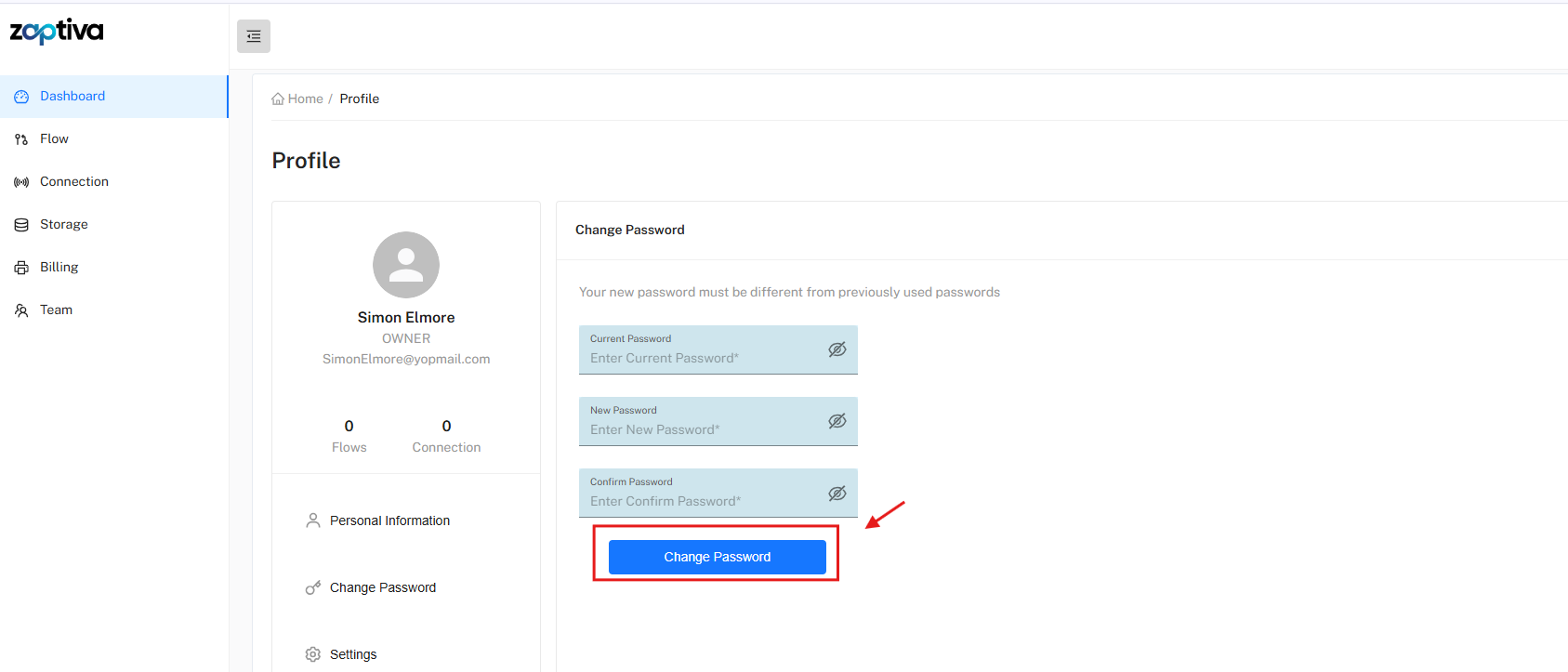
7. A confirmation message saying “Your password was updated successfully” will appear at the bottom-right corner of the screen, confirming that your password has been changed.
Unable to Reset Password – Mobile Number Not Verified
1.If your mobile number is not verified, you will not be able to reset your password and will see the message “Please verify your mobile number to continue.” In such case, please reach out to
support@zaptiva.com
Related Articles
How to manage Subscription and Payment Method in Zaptiva.
Managing Billing & Payment Methods in Zaptiva Follow the steps below to manage Billing & Payment Methods in Zaptiva: 1. Navigate to the URL: https://app.zaptiva.com/ 2. Log in to your Zaptiva account. Billing & Subscription Update Payment Method ...Manage Team (Add/Remove Team Members)
Add/Remove Team Members Follow the steps below to manage team members in Zaptiva, including adding and removing users. Navigate to the URL: https://app.zaptiva.com/ Log in to your Zaptiva account. 3. From the left-hand menu, click on Team to navigate ...Creating a connection to QuickBooks Online
To complete the connection from Zaptiva to QuickBooks Online, please follow the steps below. Connect Click on “Connection” option in the left pane. Click on “Add Connection” which will prompt you for connection name. Let’s enter the name of the ...Zaptiva Apps Categories
Apps Categories Zaptiva provides apps that allow users to connect external systems, databases, and file formats within automation workflows. These apps are organized into three categories: Core Apps. Standard Apps. Premium Apps. Core Apps Core Apps ...Creating a connection to QuickBooks Desktop
To complete the connection from Zaptiva to QuickBooks using the QuickBooks Web Connector (QWC), please follow the steps below. 1. Connect 2. Install 1. Connect Click on “Connection” option in the left pane. Click on ‘Add Connection’ to open a prompt ...