How to manage Subscription and Payment Method in Zaptiva.
Managing Billing & Payment Methods in Zaptiva
Follow the steps below to manage Billing & Payment Methods in Zaptiva:
2. Log in to your Zaptiva account.
Billing & Subscription
Update Payment Method
Billing & Subscription
1. Click on Billing from the left-hand menu and you will be redirected to the Billing page.
2. On the Billing page, you can view:
- Your current subscription plan.
- Billing details.
- Renewal date.
- Payment Information.
To modify your plan, click on the Change Plan button.
3. After clicking Change Plan, you will be redirected to the Pricing / Plans page. Here, you can:
- View your current plan.
- Compare available plans.
- Review features, benefits, and pricing details.
4. To switch to a different plan, click the Upgrade or Downgrade button under your desired plan.
5. Clicking on Upgrade/Downgrade option a Subscription Change Confirmation popup will appear displaying:
- Selected plan details
- Updated pricing information
- Billing cycle impact (if applicable)
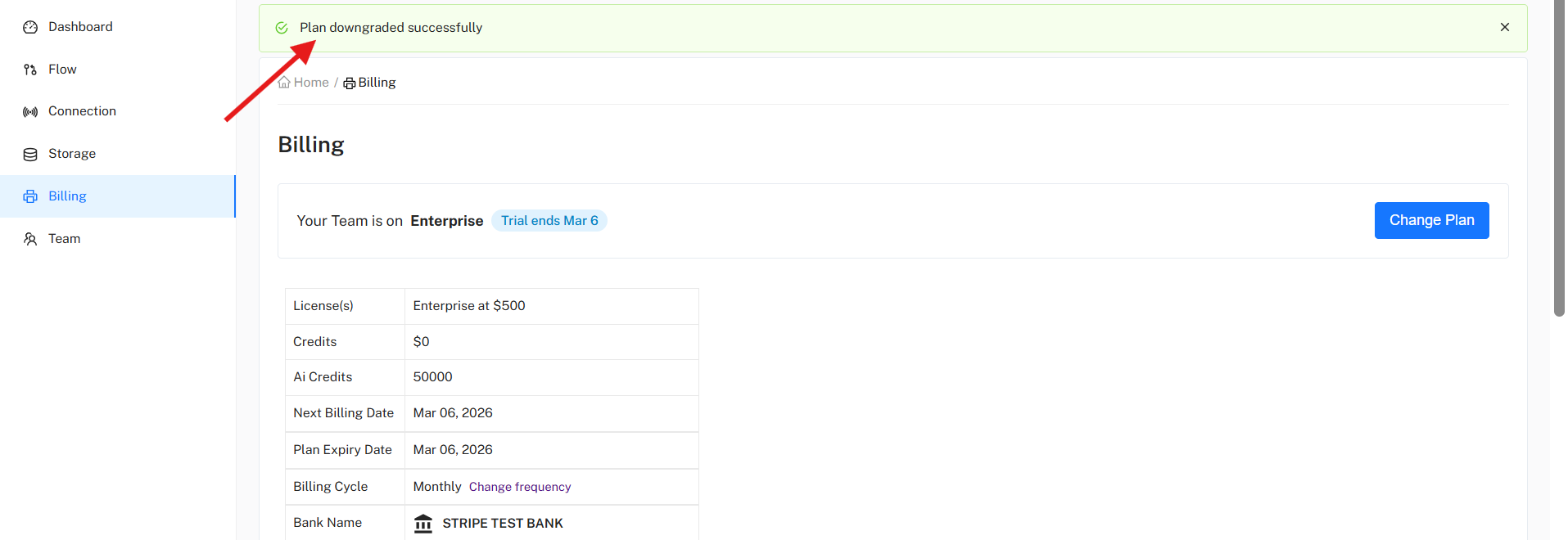
6. Finally click the “Continue” button to confirm the change. Once completed, you will be redirected to the Billing page, and a confirmation message — “Plan upgraded/downgraded successfully” — will appear.
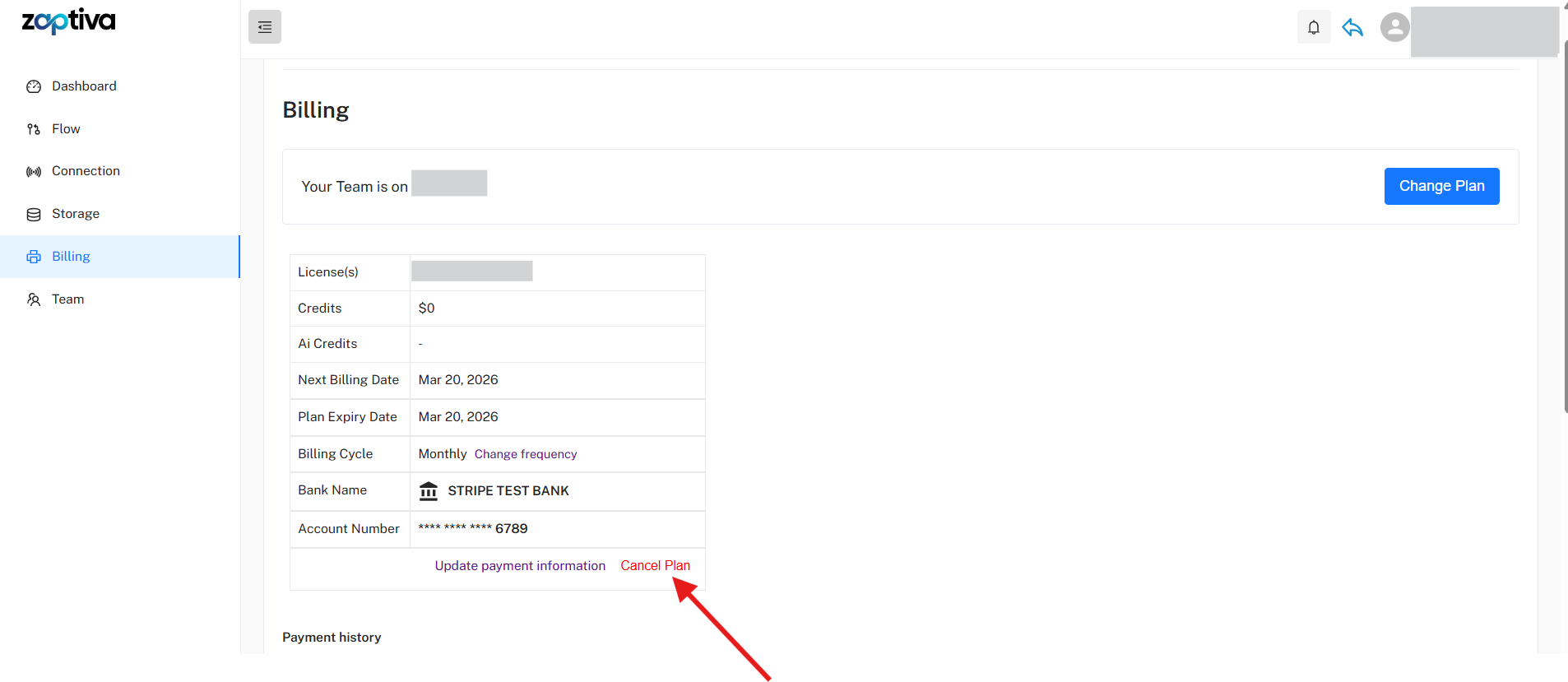
7. To cancel your current plan, click the “Cancel Plan” link on the Billing page. A Cancel Confirmation popup will appear. Click “OK” to confirm the cancellation.
Update Payment Method
1. On Zaptiva, click on Billing from the left-hand menu. You will be redirected to the Billing page.
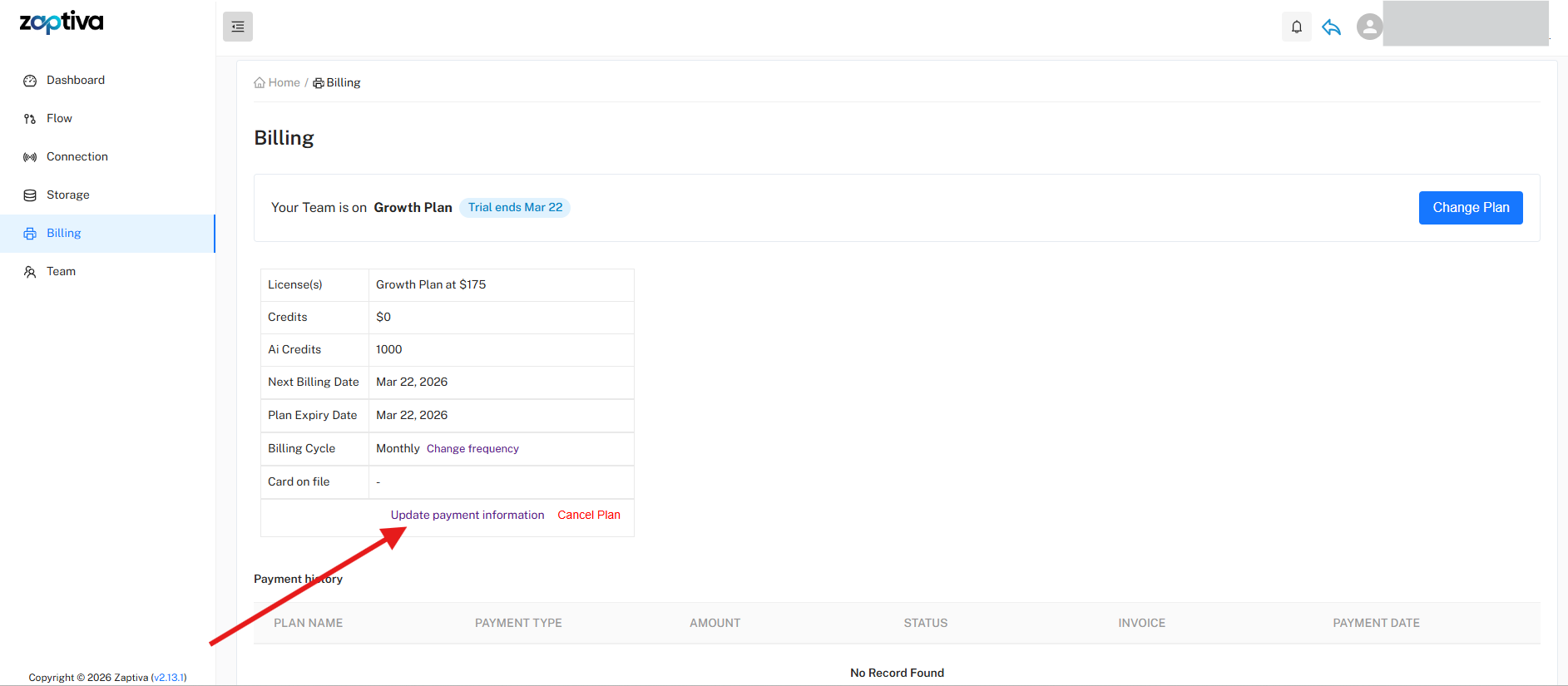
2. On the Billing page, click the “Update Payment Information” link. You will be redirected to the Stripe Hosted Payment Method Update page.
3. On the Payment Update page, select one of the available payment options:
3. On the Payment Update page, select one of the available payment options:
- Credit/Debit Card
- US Bank Account
Option 1: Update Payment Method Using Card
a. Select the Card option.
b. Enter the following details:
- Card Number
- Expiration Date (MM/YY)
- Security Code (CVC)
- Billing Country
- Email (optional)
- Mobile Number (optional)
- Full Name (optional)
c. After reviewing the entered card details carefully, click the Add button.
d. Upon clicking the Add button, you will be redirected to the “Confirm Payment Method Update” page.
Option 2: Update Payment Method Using US Bank Account
a. Select the US Bank Account option.
b. Enter the required details:
- Email Address.
- Account Holder Name.
- Select the Bank.
c. Complete the bank account login and verification process.
d. After reviewing the entered bank details carefully, click the Add button.
e. Upon clicking the Add button, you will be redirected to the “Confirm Payment Method Update” page.
4. If multiple payment methods are available, click the “Go to My Account” option on the Confirm Payment Method Update page. Then, click the More Actions icon next to your preferred method and select “Make Default.”
5. Finally, click the "Return to Zaptiva, LLC" link to return to Zaptiva.
6. The updated payment method will be visible on the Billing page once the process is completed successfully.
Related Articles
Zaptiva Release Notes
v2.21.0 Beta Release Date: July 31, 2026 MAJOR FEATURE: Google Sheets Integration: Added Google Sheets integration with spreadsheet create, read, update, and delete actions. Coupon & Promotion Code Management: Introduced a Coupons module in the Super ...Getting Started with Zaptiva.
Signup The first steps to get started is to sign up for a Zaptiva account, and select a plan. Navigate to the URL: https://app.zaptiva.com/ Login page will display Click on “Don’t have an account?” link and you will be redirected to the sign up page ...Manage Team (Add/Remove Team Members)
Add/Remove Team Members Follow the steps below to manage team members in Zaptiva, including adding and removing users. Navigate to the URL: https://app.zaptiva.com/ Log in to your Zaptiva account. 3. From the left-hand menu, click on Team to navigate ...Zaptiva Apps Categories
Apps Categories Zaptiva provides apps that allow users to connect external systems, databases, and file formats within automation workflows. These apps are organized into three categories: Core Apps. Standard Apps. Premium Apps. Core Apps Core Apps ...Notifications in Zaptiva: Overview and User Guide
1. Notifications in Zaptiva Notifications in Zaptiva help users stay informed about important activities, updates, and system events in real-time. These alerts ensure that users never miss critical actions such as Renewal Subscription status, ...